

After the last post, we have a ready-made table for all team members – let’s work on its visual form, because in the future we will use it many times and refer to it in many places throughout the document:
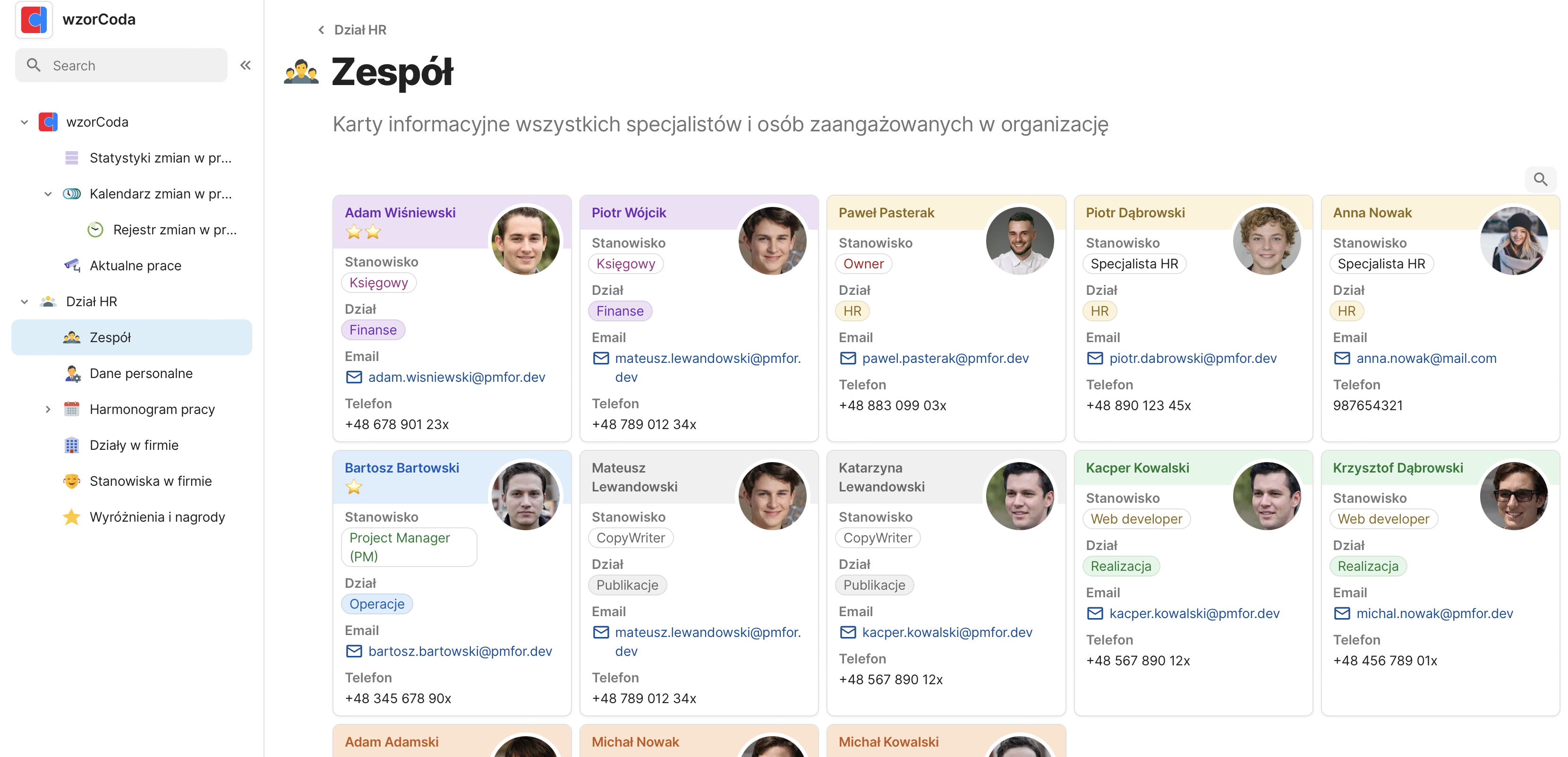
We move the CART view to a new tab “Our team”.
In the main table located in the document “personal data” we will add contact information for everyone – we create two new columns under this: email + phone:
I completed the contact information, hid the FULL NAME column (it is not needed here) and added a column for the photo by editing its display as below:
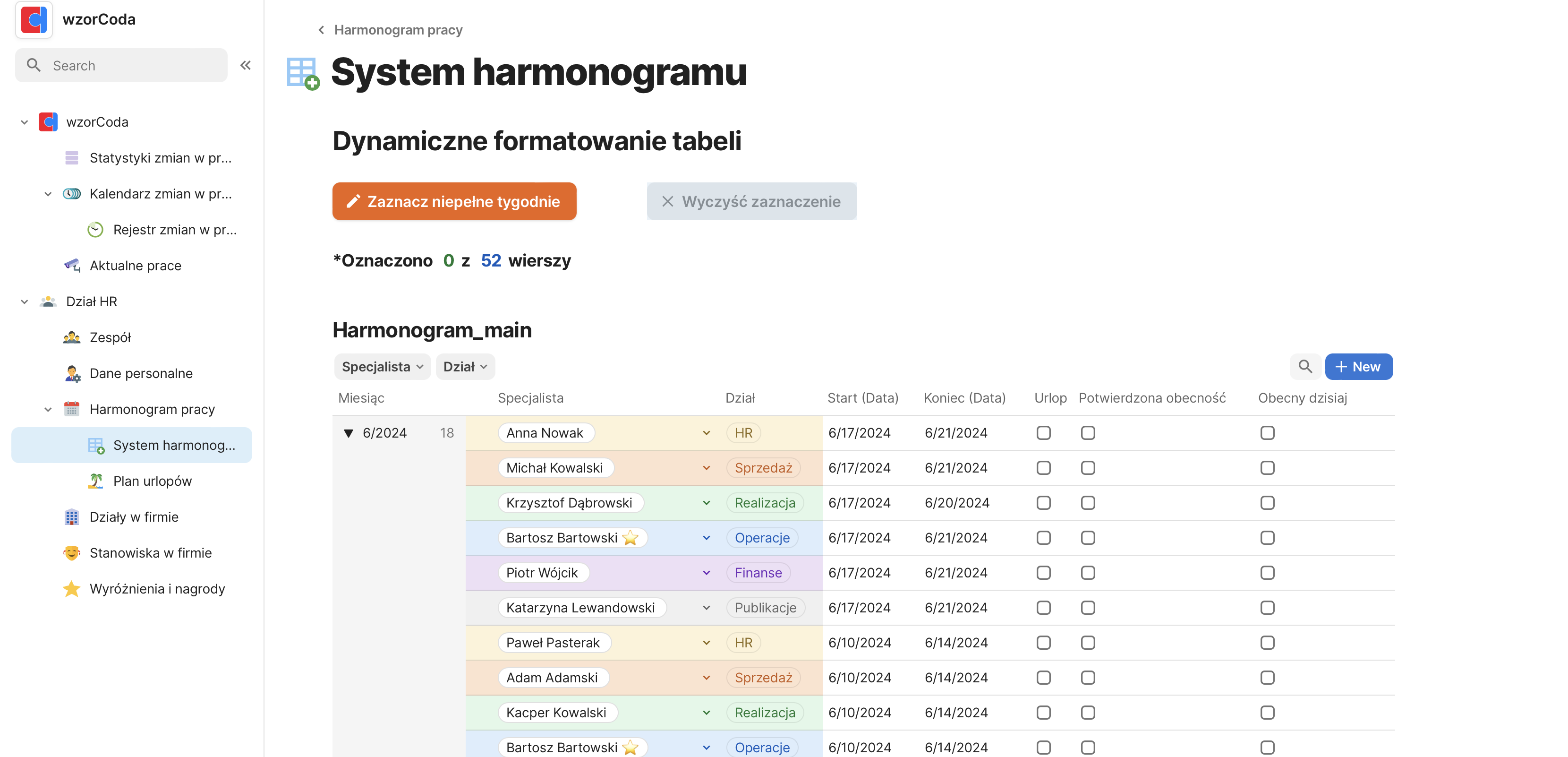
(I also renamed the table by appending “_main” to it – in the future, each main table, based on which new alternative views of this table will be created, will have such an appendix.Now we will modify our team cards:
After entering the card settings, we will hide the infomation that is unnecessary here, and change the order and layout for the displayed information.
After quick modifications, we get the result as below:Next, we will add conditional formatting for deselecting the card with the color of a particular department. In coda.io you can set the color for the whole card, but for now I will set the top bar. In addition, I can set sorting by department, for our case I will move the cards manually.
It is important that the formatting, which we want to be global, should be given to the main table (the one with “_main”) – such formatting we will be able to use in any created view of this table.I intentionally gave the formatting only to one column “FULL NAME”, which will be hidden in the table view, so that for alternative views we can get the result as below
We will still determine what information is to be available from the inforrmation tab displayed after clicking on a person:
The above setting yields an effect as below:
This ends the topic of visual aspects of the team card 🙂